


At 19 · Student
Copy the slide, not a photo of it. Recognise Text turns a lecture into notes you can search.
Free for Mac · No account
Screenshots, scrolling pages, recordings and GIFs, with a Library that keeps every one. Everything stays on your Mac.
macOS 14 or later · Apple silicon and Intel · Notarized by Apple
Copy the slide, not a photo of it. Recognise Text turns a lecture into notes you can search.
Show the bug, don't describe it. An arrow says more than a paragraph.
The whole page, in one image. Scrolling Capture stitches it while you scroll.
Show your dad how to join the call, once. Eight seconds of GIF beats twenty minutes on the phone.
Keep the boarding pass in sight, and blur what no one else should read.
A lifetime of captures. Still on your Mac, still findable.
Features
An area, a window, the full screen or the same area again, with a magnifier for the last pixel. All in One puts every mode in one bar.
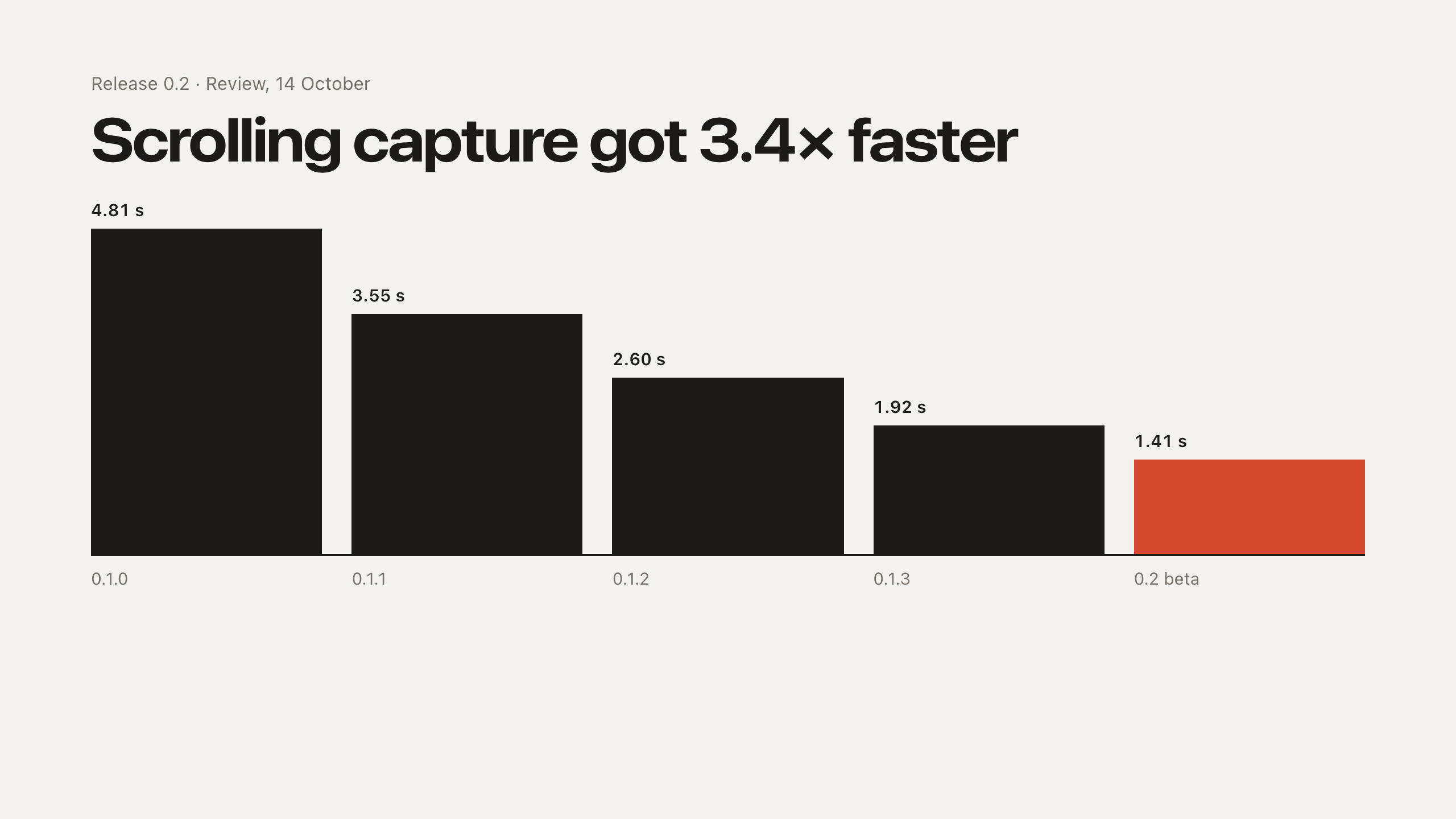
Long pages in one image. Watch it stitch as you scroll, or let Auto Scroll do it.
A window keeps its macOS shadow and sits on your wallpaper, with room around it. Hold ⇧ when you click for a clean cut-out.
Menus and tooltips hold still while you draw the frame. Desktop icons can step aside for every capture, behind your wallpaper, a picture or a colour.
PNG, JPEG or HEIC, in sRGB, at 1x or with a 1 px border. The Library always keeps a lossless PNG.
Hold ⌘ while you select: a loose frame tightens to what is inside, and a click takes just the button, card, photo or headline under it. Capture Area with Snapping does it without ⌘.
Copy the words off the screen in reading order, and find the capture by them later.
Arrows, rectangles, pen, highlighter, text and numbered steps, then crop. Pixelate or blur that really removes the pixels.
Draw the area, then choose Video or GIF. Your voice, the Mac's sound, your camera, clicks and keys are one switch each.
A camera bubble sits in your recording. Drag it anywhere, or click it to fill the area.
Point things out as you talk: pen, marker, arrows, shapes, text, numbered steps, a laser pointer and a spotlight. Click Draw on the recording controls, or press ⌃⌥⌘D. Marks fade unless you keep them.
Redact covers a box with Pixelate or Blur, on your screen and in the video. Point at the box for a ✕ that takes it away.
Clicks show a ring and shortcuts show as keys, right in the recording.
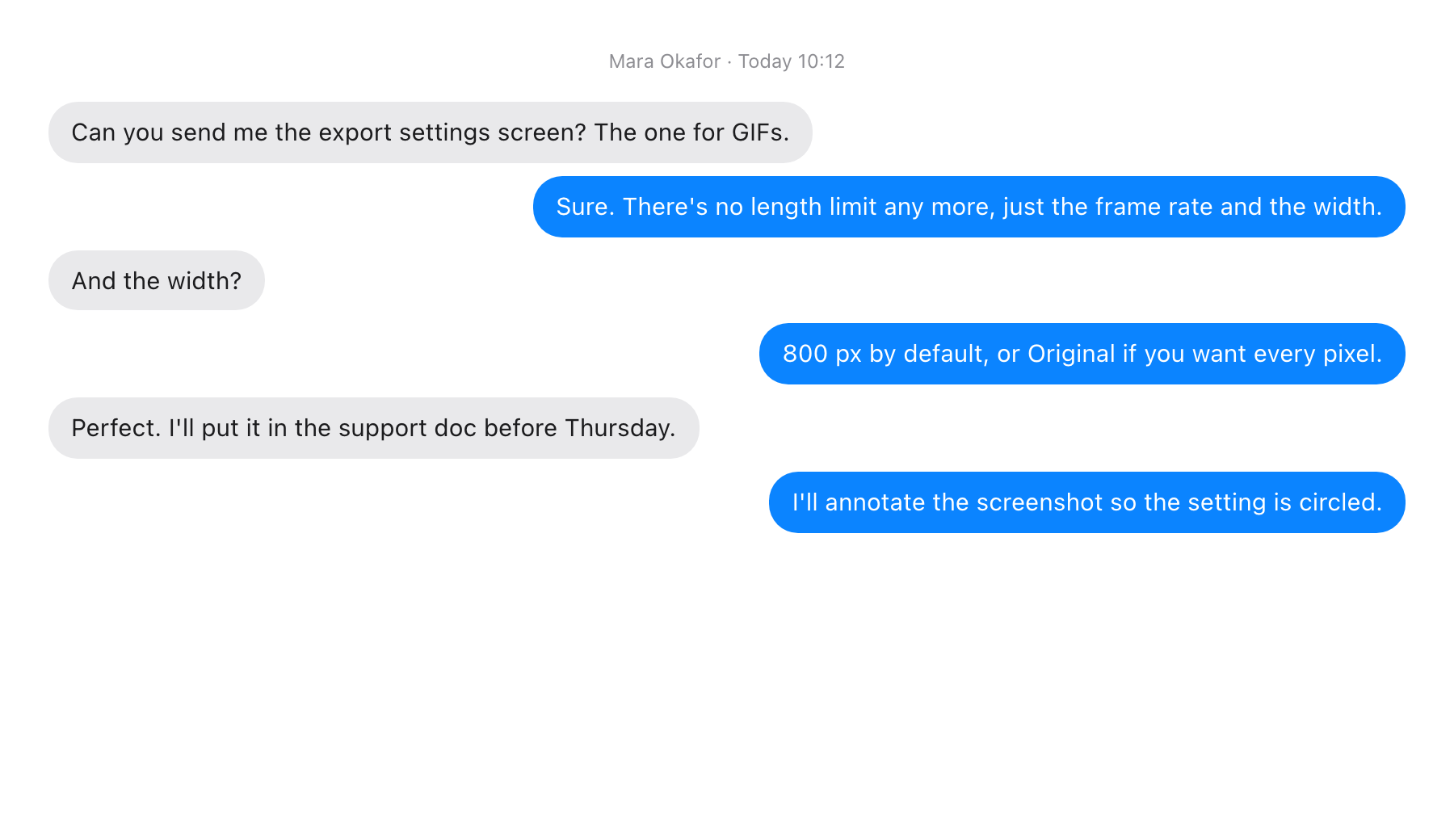
Pick the frame rate and width. Optimise keeps them small and sharp.
Every capture lands in the corner as the capture itself, and stays until you close it. Copy, save, annotate or pin it, drag it into any app, or press Space to preview. Pick the corner and one of five sizes, or let cards close, and save, on their own.
Keep a capture floating above your work, on every Space. Zoom it, lock it, or fade it while you copy from it.
Every screenshot, recording and GIF along the top of the screen, newest first. Point at one and Restore puts it back in the corner, even after you closed it.
Every capture remembers the app and window it was taken from. Find it by the app's name, or see it in the Library as From.
Every capture and recording, by day. Filter by kind, play recordings in place, and search by recognised text, app, kind or date.
Light or dark, with Liquid Glass on macOS 26. It lives in the menu bar and joins the Dock only while a window is open.
Try it
A small Mac, right in the page. Drag across the window to capture it, or press ⌃⌥⌘5 to record it.
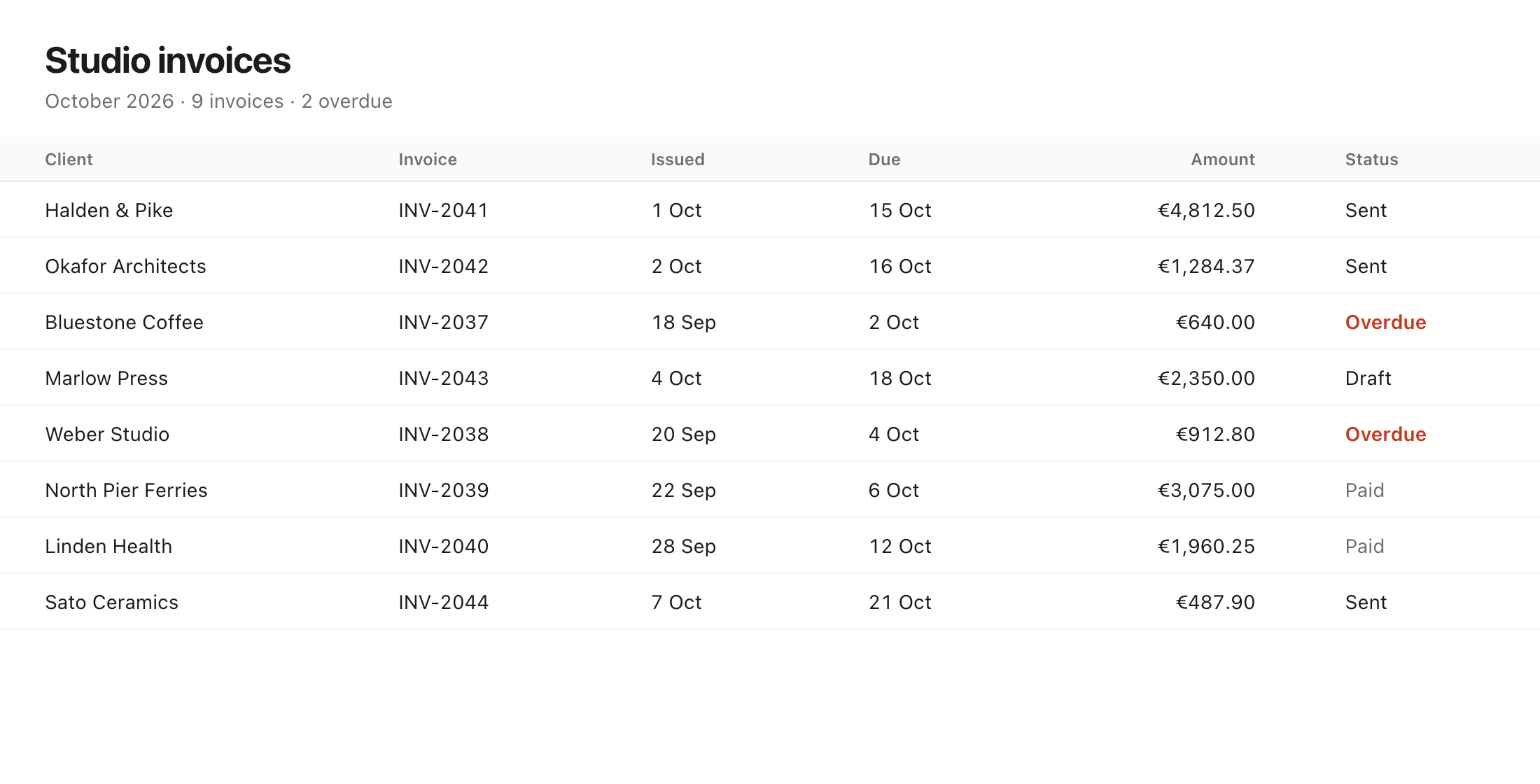
Drag across the desktop to capture an area. Control Option Command 4 starts an area capture, and Return then captures the invoice table. Capture Window is in the HeySnapMe menu, at the right of the menu bar. Control Option Command 5 starts Record Screen: drag to frame the recording and adjust it, then press Return for a video or Option Return for a GIF; with no area drawn, Return records the invoice table. A window capture sits on the wallpaper with its shadow; hold Shift as you click for a cut-out. Control Option Command 5 again stops the recording. Escape cancels. Each capture lands in the bottom left corner with Copy, Save, Pin, Annotate, Trash and Close, and each recording with Copy, Save, Play, Trash and Close. Hover or focus a card and press Space to preview it.
Privacy
Captures, recordings and the text inside them are saved on this Mac and nowhere else.
No account, no trial, no subscription.
Signed by Unity Bridge Solutions and checked by Apple before it opens.
Shortcuts
Change any of them in Settings, or give a shortcut to any of 32 commands, grouped and searchable. HeySnapMe can take ⇧⌘3, ⇧⌘4 and ⇧⌘5 from macOS, and walks you through it. It warns you when keys clash.

Coming soon · Apple silicon and Intel · Notarized by Apple
FAQ
